GuideMarkdown export
YouTube Transcript to Markdown
Capture the transcript from the video you are watching, then save it as Markdown that opens in any editor, works offline, and stays yours.
Free local Markdown · no account required
How it worksQuick guide
From YouTube page to your folder.
- 01
Open a YouTube video
Visit a video with an available transcript.
- 02
Open Transcriptly
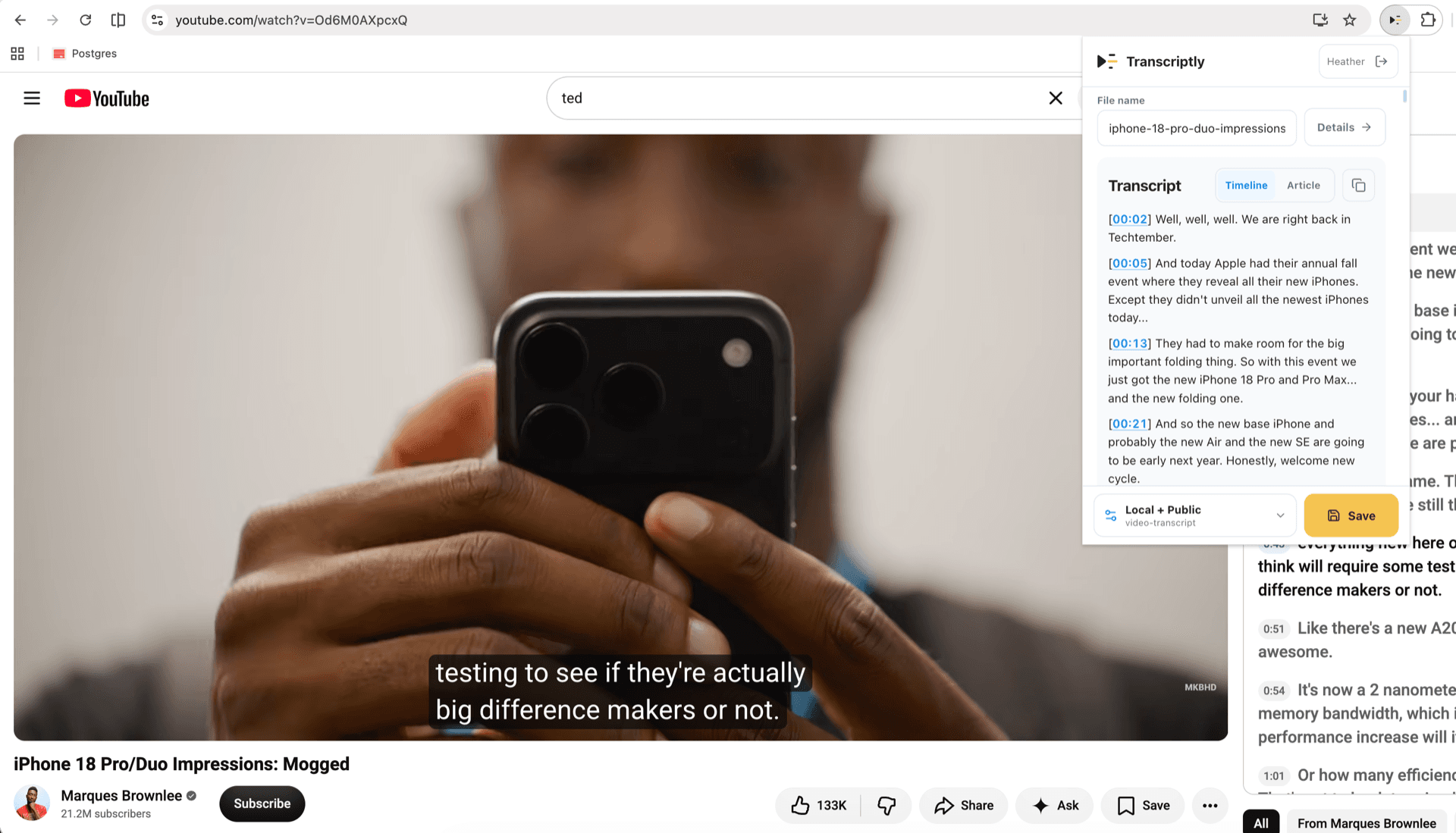
The extension reads the transcript from the YouTube page and shows a preview before anything is saved.
- 03
Choose a format
Keep every segment in Timeline format, or choose Article format to reflow the same transcript into readable paragraphs.
- 04
Save the Markdown
Name the file and save it in your chosen local folder. No account or export service is required.
FAQBefore you install
Common questions, answered.
What is the difference between Timeline and Article?
Timeline keeps every caption segment as a timestamped list item. Article reflows the same transcript into paragraphs, while preserving timestamp links and chapter boundaries.
What does the saved file contain?
The Markdown file includes YAML metadata, the title and source link, optional description and chapters, and timestamp links back to YouTube.
Can I save a video without an available transcript?
No. Transcriptly captures transcript text that YouTube makes available for the video; it does not create a transcript from audio.
Do I need an account?
No. Saving Markdown locally works without an account. Signing in is only needed if you choose to publish a copy to the public archive.
Make your next YouTube session searchable.
Install Transcriptly and save the transcripts you want as Markdown files you control.